|
|
|
|
POKENO PLUS
|
Each Bingo Rose software product is fully documented, and the detailed Help file for the particular product is installed on your computer in the software installation directory. We strongly encourage you to review that Help file that will likely answer any questions you may have. However, Bingo Rose proudly provides access to support beyond that provided with that documentation. Phone between the hours of 8:00AM and 5:00PM CST at : (204)334-3425 If the call is not connected (we are offline), send us an email with a name and phone number we can call back when available. Email: info@BingoRose.biz If we do not answer telephone calls when you call, it is likely that we are supporting another customer or working hard towards making our software even better!
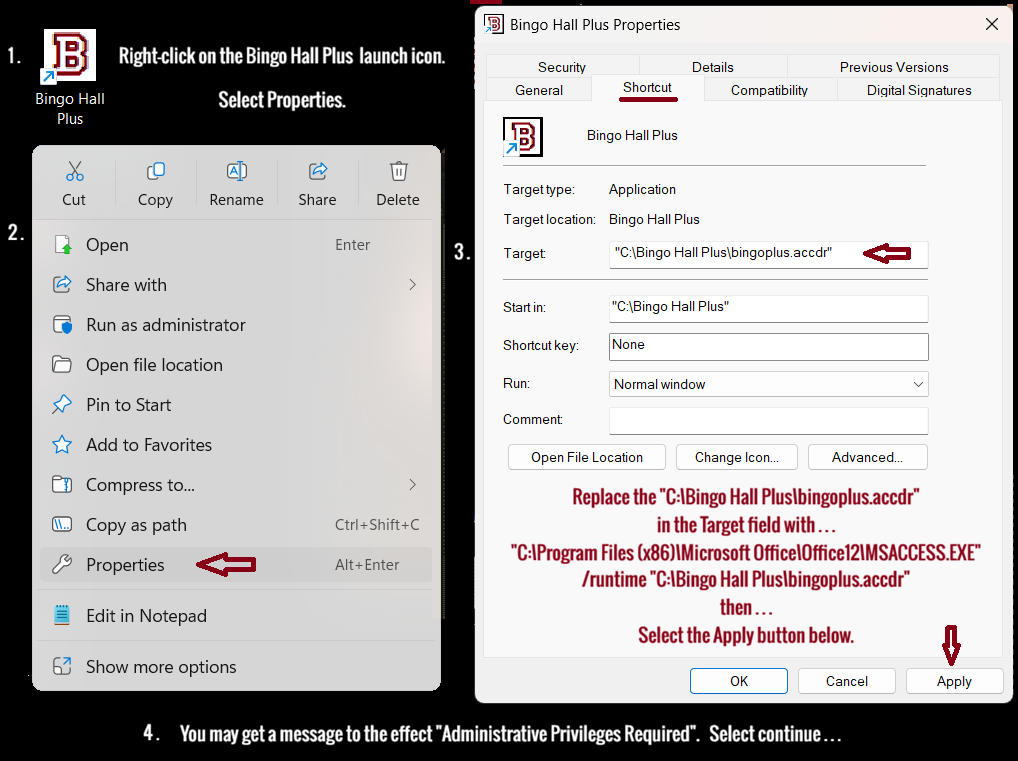
Bingo Rose software is designed on a Microsoft Access 2007 platform, enough of that program is installed as the second stage of our software installation. If you have a newer version of Access on your computer that has been activated, access to the software will likely be restricted or unforeseen problems with software operation may occur during use in that version of Access. It is therefore very important that you modify the software launch icon Target property which will force our software to launch within the Microsoft Access 2007 environment. The image below reflects how to modify the launch icon for the Bingo Hall Plus software. The Target property for this and our other products is identified below.
Product Target properties
"C:\Program Files (x86)\Microsoft Office\Office12\msaccess.exe" /runtime "C:\Bingo Hall Plus\bingoplus.accdr" If that doesn t work, try: "C:\Program Files\Microsoft Office\Office12\msaccess.exe" /runtime "C:\Bingo Hall Plus\bingoplus.accdr" Note that it might be easiest to copy and paste the entire text required so that all spacing is correctly entered.
"C:\Program Files (x86)\Microsoft Office\Office12\msaccess.exe" /runtime "C:\Bingo Flashboard Basic\flashbasic.accdr" If that doesn t work, try: "C:\Program Files\Microsoft Office\Office12\msaccess.exe" /runtime "C:\Bingo Flashboard Basic\flashbasic.accdr" Note that it might be easiest to copy and paste the entire text required so that all spacing is correctly entered.
"C:\Program Files (x86)\Microsoft Office\Office12\MSACCESS.EXE" /runtime "C:\Pokeno Plus\pokeno.accdr" If that doesn t work, try: "C:\Program Files\Microsoft Office\Office12\MSACCESS.EXE" /runtime "C:\Pokeno Plus\pokeno.accdr" Note that it might be easiest to copy and paste the entire text required so that all spacing is correctly entered.
"C:\Program Files (x86)\Microsoft Office\Office12\msaccess.exe" /runtime "C:\Bingo Caller\bingocaller.accdr" If that doesn t work, try: "C:\Program Files\Microsoft Office\Office12\msaccess.exe" /runtime "C:\Bingo Caller\bingocaller.accdr" Note that it might be easiest to copy and paste the entire text required so that all spacing is correctly entered.
"C:\Program Files (x86)\Microsoft Office\Office12\msaccess.exe" /runtime "C:\Dingo\dingo.accdr" If that doesn t work, try: "C:\Program Files\Microsoft Office\Office12\msaccess.exe" /runtime "C:\Dingo\dingo.accdr" Note that it might be easiest to copy and paste the entire text required so that all spacing is correctly entered.
"C:\Program Files (x86)\Microsoft Office\Office12\msaccess.exe" /runtime "C:\Bingo Home\bingohome.accdr" If that doesn t work, try: "C:\Program Files\Microsoft Office\Office12\msaccess.exe" /runtime "C:\Bingo Home\bingohome.accdr" Note that it might be easiest to copy and paste the entire text required so that all spacing is correctly entered.
You can point the current Target property to open in Access 2007 by adding what is contained in it to the entry below: IE: Change C:\XXX\xxx.accdr to . . . "C:\Program Files (x86)\Microsoft Office\Office12\msaccess.exe" /runtime "C:\XXX\xxx.accdr" If that doesn t work, try: "C:\Program Files\Microsoft Office\Office12\msaccess.exe" /runtime "C:\XXX\xxx.accdr " Note that it might be easiest to copy and paste the entire text required so that all spacing is correctly entered.
Oswald Font Note: To achieve the correct look of the software (crisp numbers), the Oswald font must be installed on your computer. This font installation file is contained in the installation directory \Font\oswald.zip file after installation of our software. Open the Oswald-Regular.otf file contained therein and select the Install button at the top. Font installation takes but a couple of seconds!
Screen resolution Note that for the software to fill your screen, set your computer at 1366 X 768 screen resolution, the designed resolution for the software to fill the screen.
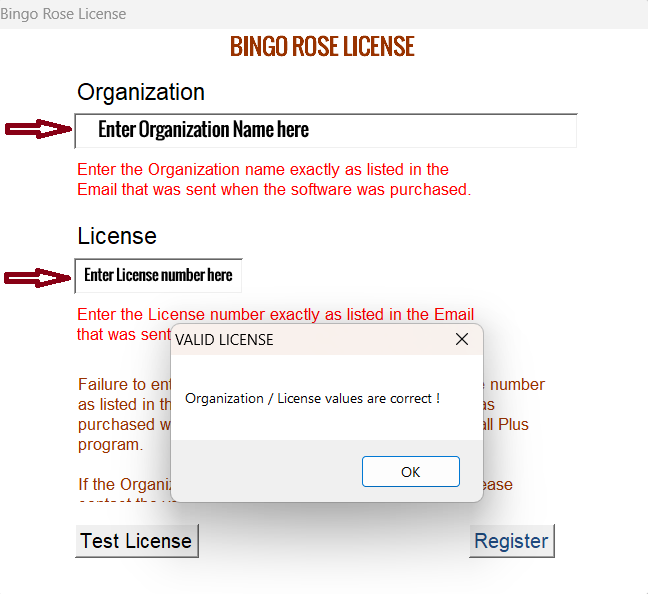
Product Registration After installation and launch icon modification as described above, when you launch the software the first time you will be required to register your specific license information as identified in the email message we send after we process your software purchase. Note that this information is Case sensitive.
We strongly recommend that you use the Test License button to ensure the information you entered is correct prior to using the Register button to finalize the registration. The VALID LICENSE popup will confirm that you have successfully registered your software license and are now able to access the software.
Websites and Documentation
Website: https://www.bingorose.biz/plus.html Documentation: https://www.bingorose.biz/downloads/Bingo%20Hall%20Plus%20documentation.pdf Installation package (Requires Installation Code and Organization / License to install): https://www.bingorose.biz/downloads/plus.zip Bingo Flashboard (Basic) Website: https://www.bingorose.biz/flashboard.html Installation package (Requires Installation Code and Organization / License to install): https://www.bingorose.biz/downloads/flashbasic.zip Pokeno Plus Discontinued March 2026 Website: https://www.bingorose.biz/pokeno.html Documentation : https://www.bingorose.biz/downloads/Pokeno%20Plus%20documentation%20V21.pdf
Installation package (Requires Installation Code to install): https://www.bingorose.biz/downloads/pokenoplus.zip
Bingo Hall Plus software demo period
We are pleased to offer a FREE full-functioning 7 day demonstration period of the Bingo Hall Plus software upon request. Please contact Bingo Rose with:
NOTE: Before running the software for the first time after installation, you must replace certain files that were installed to bypass the normal registration and allow the demonstration period. These files will be emailed to you in response to your request for the demo.
Backup your software !
Thank you for purchasing Bingo Rose software. We believe it will provide your organization years of enjoyment. We strongly recommend that you save any product installation package downloaded, as well as the email with installation instructions we send at time of purchase, in a safe place other than your computer so that it is available to you should you at a later date be required to re-install the software for any reason or install the software on an alternate computer.
Ask us a question about Bingo Rose software ! We appreciate referrals. Tell a friend about Bingo Rose software !
|